Your product photos in Google Images: what Shopify already sends
Shopify already announces every main photo to Google. What it says about it fits in a single field, often empty.
A shopper searches for “brown leather lace-up boot” and switches to the Images tab. She is not comparing stores, she is comparing photos, and she clicks the one that looks like what she wants. If yours is there, she lands straight on your product page. If it is not, it is almost never because of the photo itself: it is because Google does not know what it shows.
What Google reads to understand an image
Google does not look at a photo the way you do. It relies on the text around it, and its documentation for site owners says so plainly: alt text is the most important attribute for describing an image.
| What Google reads | Where to set it in Shopify |
|---|---|
| The image alt text | Product page, click the image, “Alt text” |
| The file name | When you upload the photo |
| The page title and description | Product page, “Search engine listing” |
| The text around the image | The product description |
| The image sitemap | Generated by Shopify, nothing to do |
What Shopify already sends Google
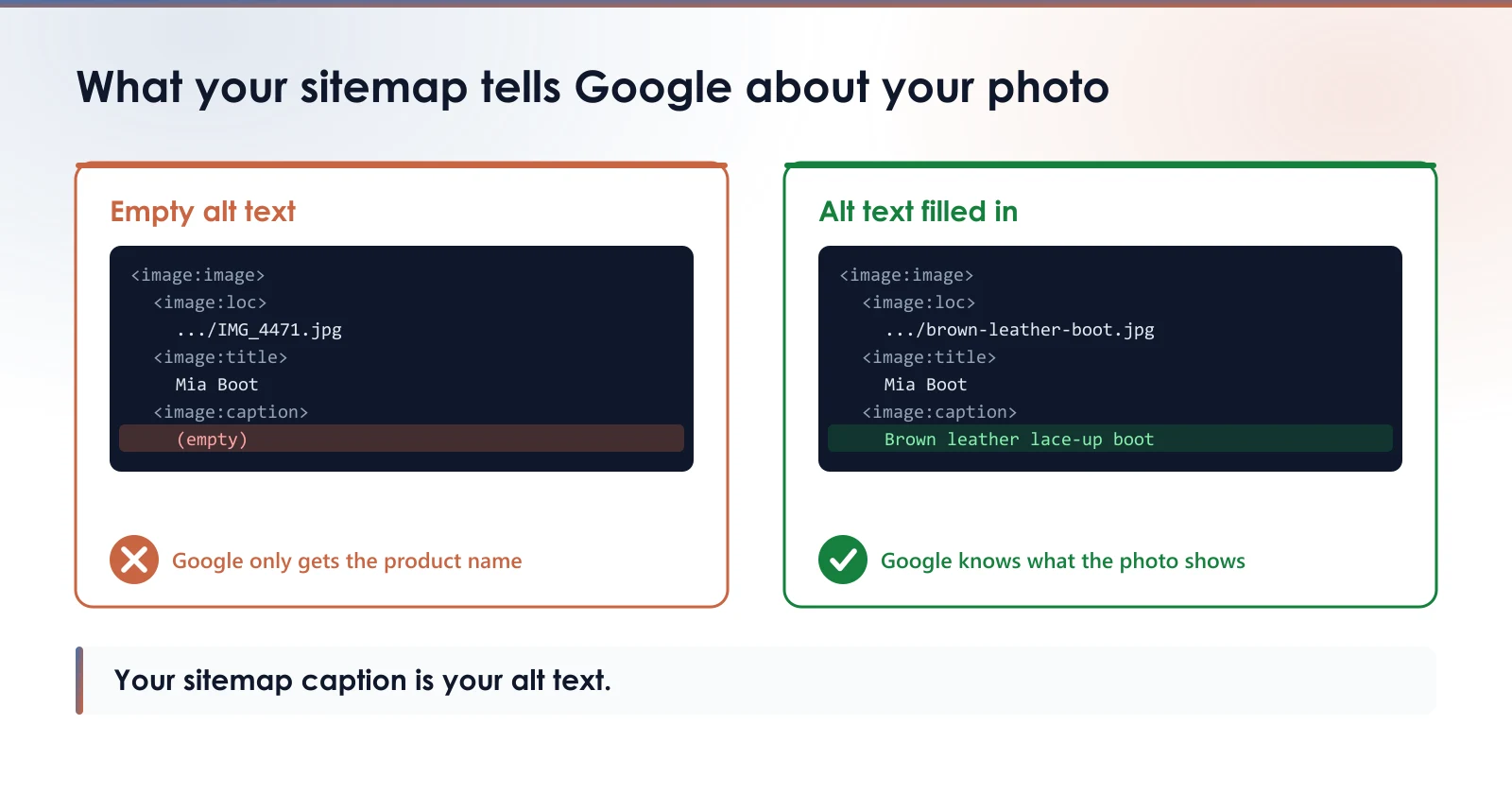
Every Shopify store publishes a sitemap, a list of its pages meant for search engines. For each product, that sitemap also declares its main image, with two pieces of information: the product title, and a caption. Shopify fills that caption with the image’s alt text.
In other words, the technical work is done. Shopify announces your main photo to Google with nothing for you to set. But if the alt text field is empty, the caption is empty too, and Google gets a photo with nothing but the product name. “Mia Boot” says nothing about the color, the material, or what the photo shows.
Where to start
1. Alt text on the main photo of your best sellers. One sentence describing what you see: the product, its color or material, the angle. That is what goes into the sitemap. Our alt text guide has examples by product type.
2. The name of new photos. brown-leather-boot.jpg rather than IMG_4471.jpg, when you upload. Renaming a photo that is already live changes its address, as the article on file names explains, so it pays to name it well from the start.
3. The page title and description. They place the photo on a page about the same product. The guide on SEO titles and meta descriptions shows how to write them.
Where PixelUnik comes in
PixelUnik writes alt text from what the photo shows and saves it in the field Shopify provides for it, the very field that feeds the sitemap caption. One description costs one token. The Starter plan includes 100 a month and handles one image at a time; the Growth plan includes 1,500 and handles the whole catalog in one run.
The same plans rename files with a descriptive name and write the SEO title and meta description of your product pages. If you are not sure yet where to start with your images, the guide on where to start sorts it out.
Check your store, in one minute
Open your best selling product in the Shopify admin and click its first photo. Look at the alt text field: what you read there is exactly what Google receives as the caption for that photo. If it is empty, Google gets only the product name.
Measure your own images
The free audit reads your store and gives you the real weight of your product images, with nothing to install.
Run the free auditStarter plan
- 100 tokens a month
- AI alt text, one image at a time
- SEO titles, meta descriptions and file names
- Originals preserved
Start with 30 free tokens, then pick a plan if the app is useful to you.
Read next
- Writing alt text that helps shoppers and search enginesAlt text exists first for people who cannot see the image. Search benefit follows. Doing it backwards produces keyword stuffing.
- The filename of your Shopify product imagesShopify has no way to rename an image once it is uploaded, and a renamed image gets no redirect. What is worth fixing, and what is not.
- Optimizing your Shopify store images: where to startThe five jobs of image optimization on Shopify, what the platform already does, and the order that pays off most in your first hour.