Dashboard Overview
The Dashboard is your central hub for managing image optimization. Here you'll find a quick overview of your account status, credits, and quick actions.
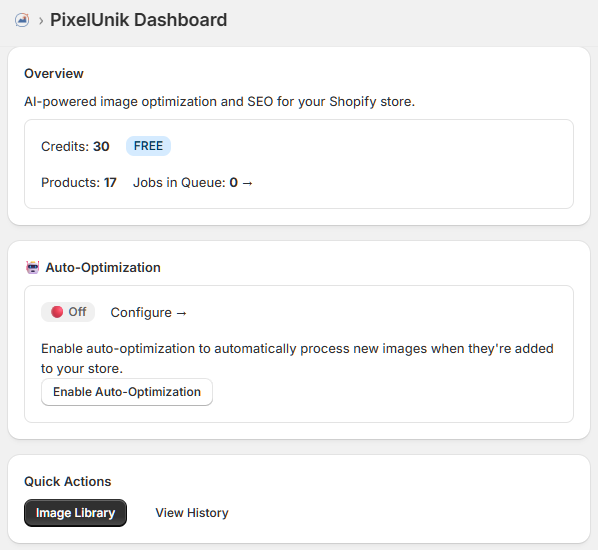
Dashboard Components
- Credits: Shows your available credits for image optimization
- Products: Total number of products synced from your Shopify store
- Jobs in Queue: Number of optimization jobs currently processing
- Auto-Optimization: Quick toggle to enable/disable automatic processing
- Quick Actions: Direct links to Image Library and View History
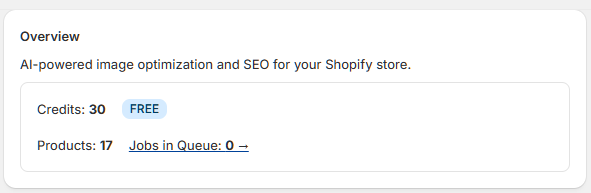
Image Library
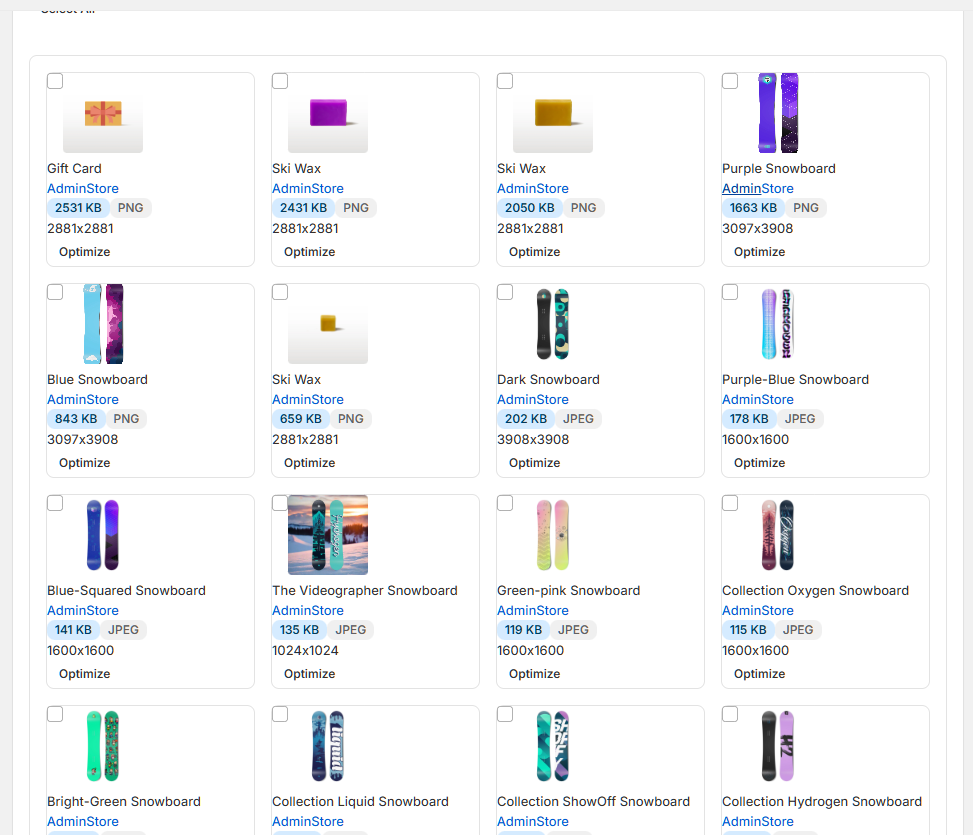
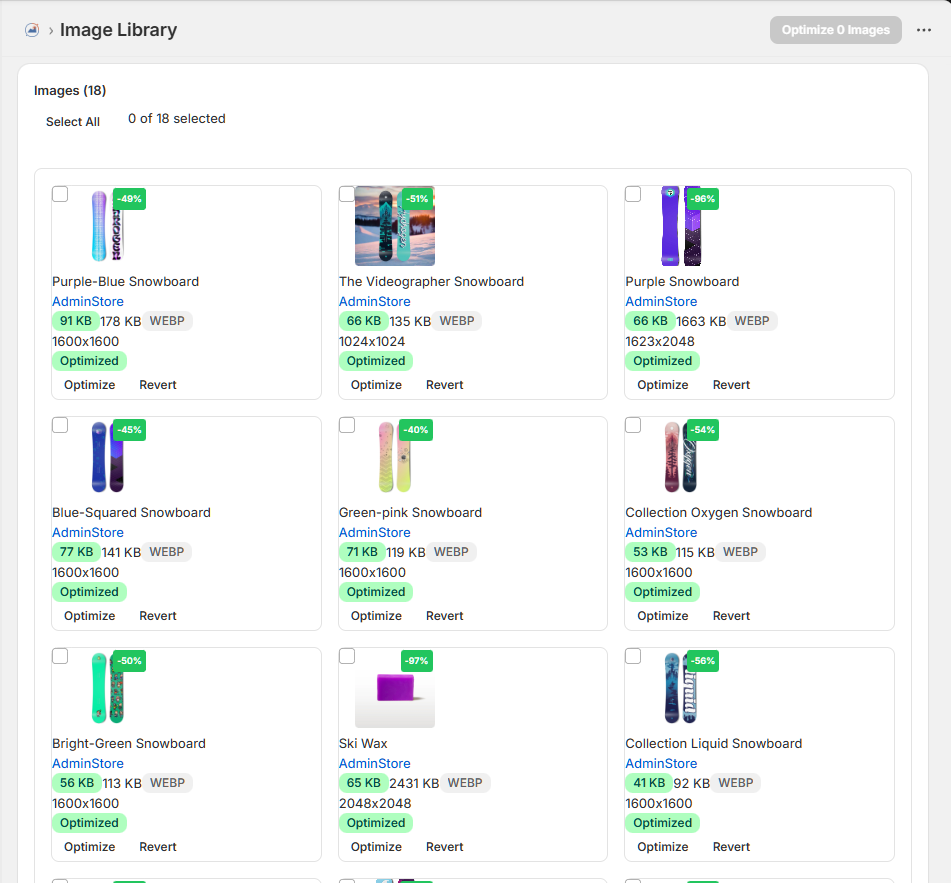
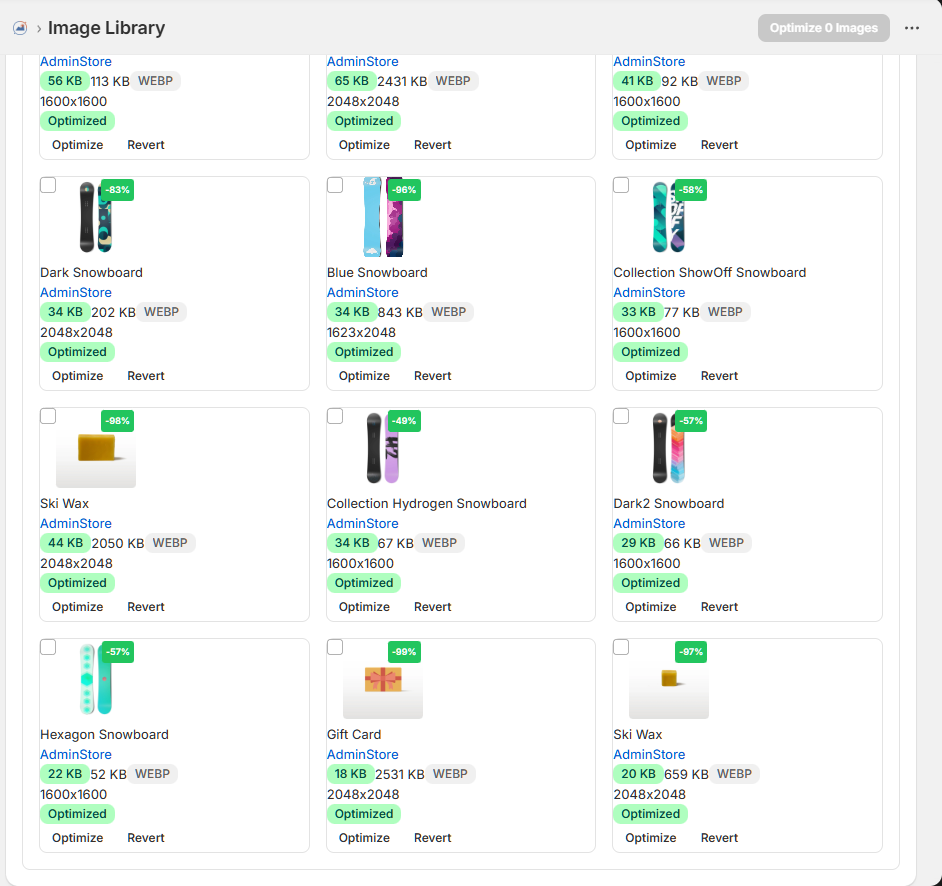
The Image Library displays all product images from your Shopify store. You can view, filter, and select images for optimization.
Bulk Selection
Select multiple images at once using the checkboxes. Use "Select All" to quickly select all images, or individually pick the ones you want to optimize.
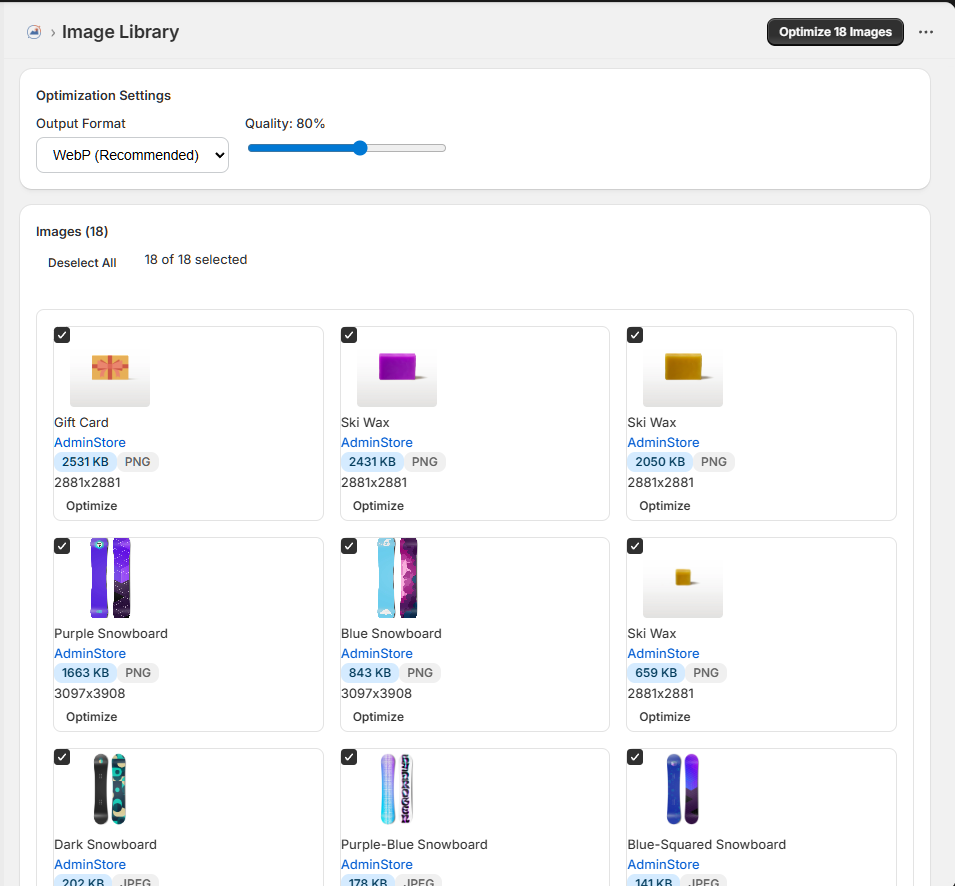
Image Information
Each image card shows:
- Product name and store location
- Current file size (highlighted if large)
- Image format (PNG, JPEG, WebP, etc.)
- Dimensions
- Optimization status
Images highlighted in blue have larger file sizes and will benefit most from optimization.
Optimizing Images
PixelUnik compresses your images while maintaining visual quality. Here's how the optimization process works.
Before Optimization
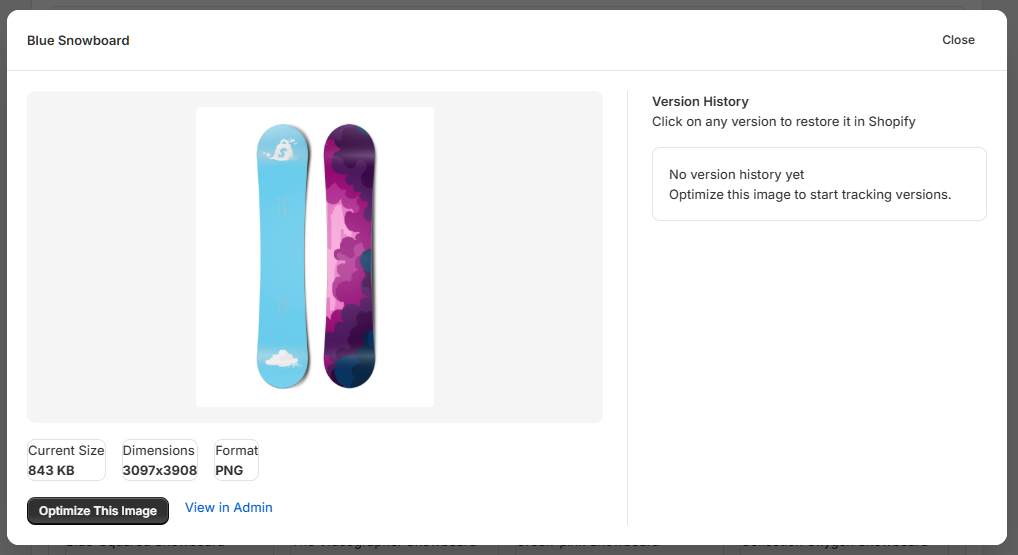
Click on any image to open the detail modal. Before optimization, you'll see the current image details and a button to optimize.
After Optimization
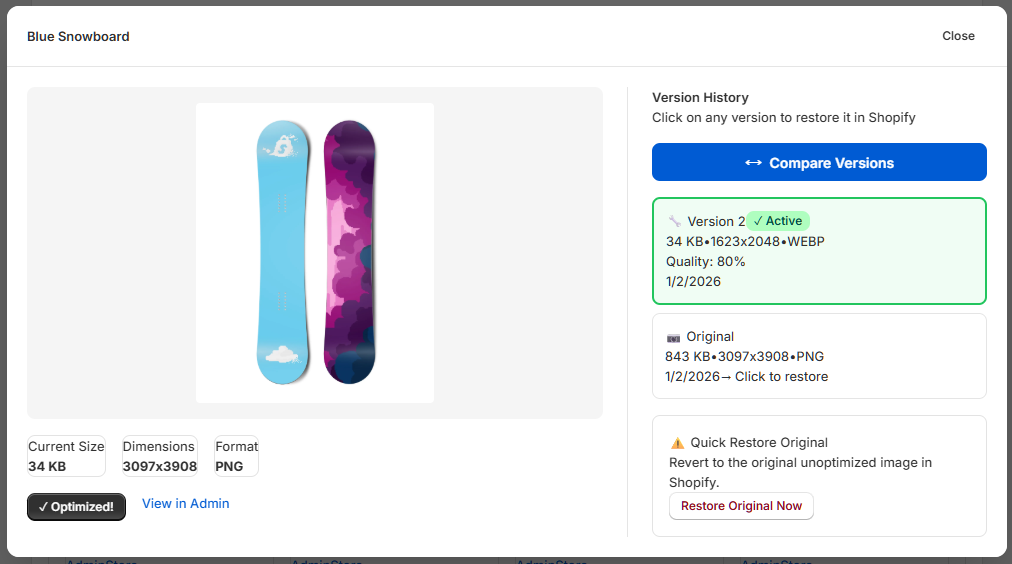
Once optimized, the modal shows the version history with compression results. You can compare versions and restore the original if needed.
Version Comparison
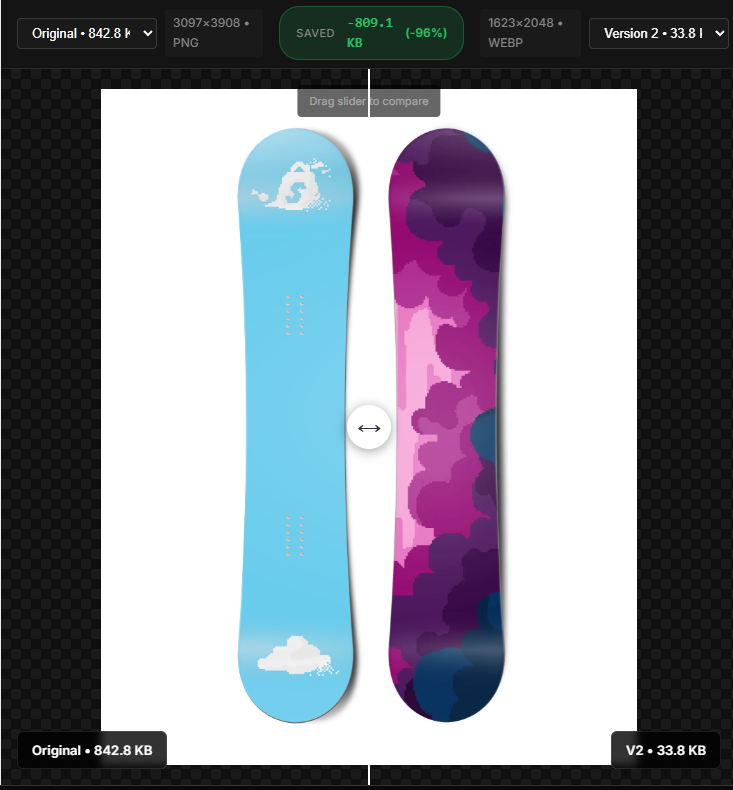
Use the comparison slider to see the difference between original and optimized versions side by side.
Optimization in Progress
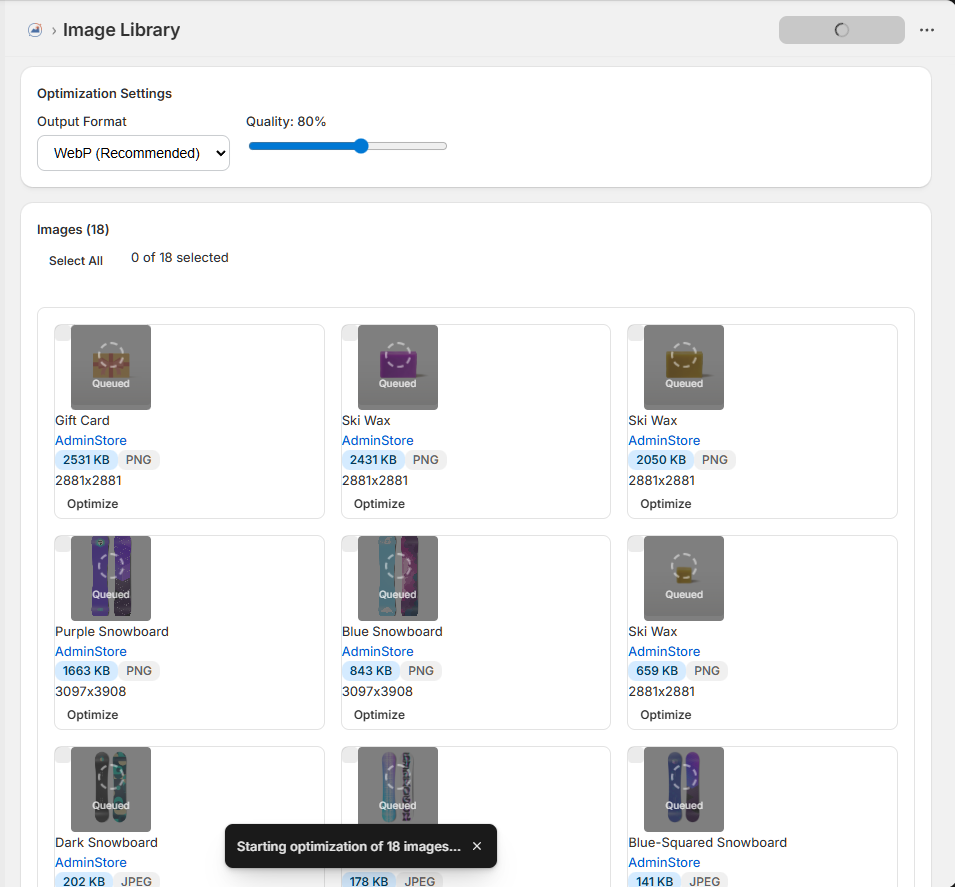
When you start a bulk optimization, images are queued for processing. You'll see a "Queued" badge on each image being processed.
Optimization Results
After optimization, you'll see green badges showing the percentage reduction achieved for each image.
Filters & Settings
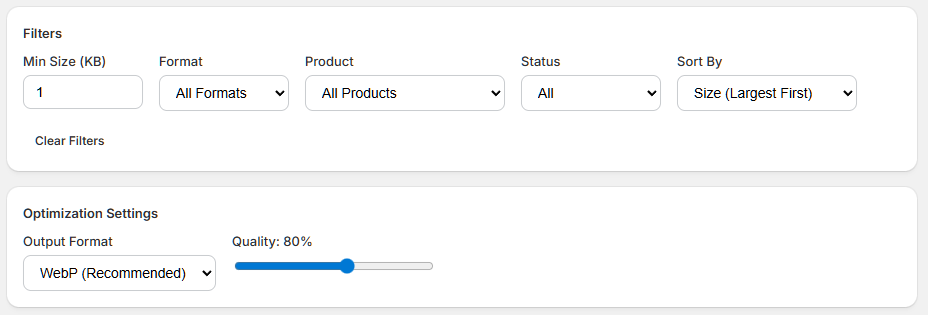
Use filters to organize and find specific images in your library. Customize optimization settings to match your needs.
Available Filters
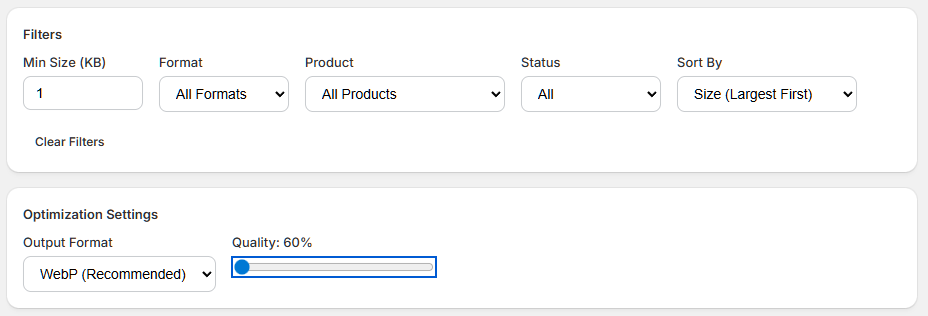
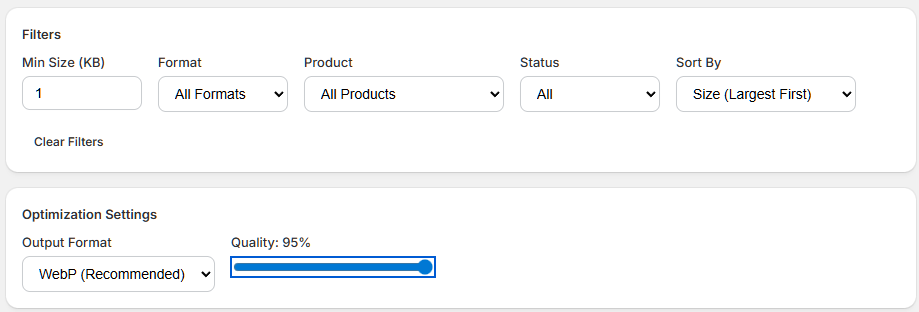
Format Filter: Filter images by file type (JPEG, PNG, WebP, GIF)
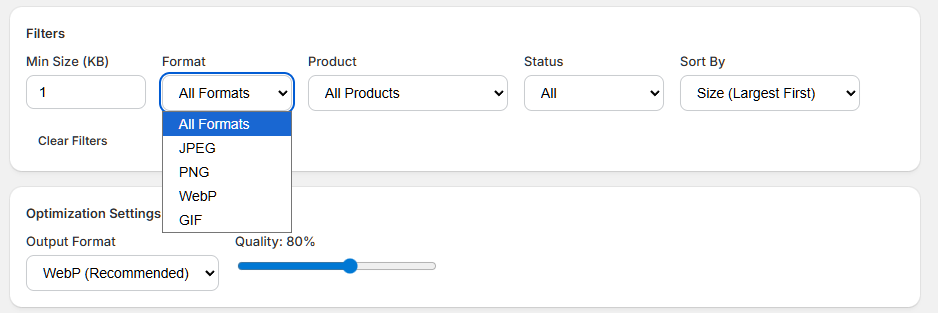
Product Filter: Show images from specific products only
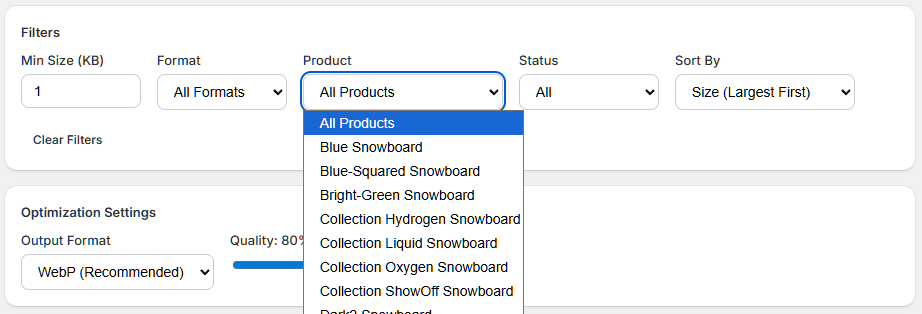
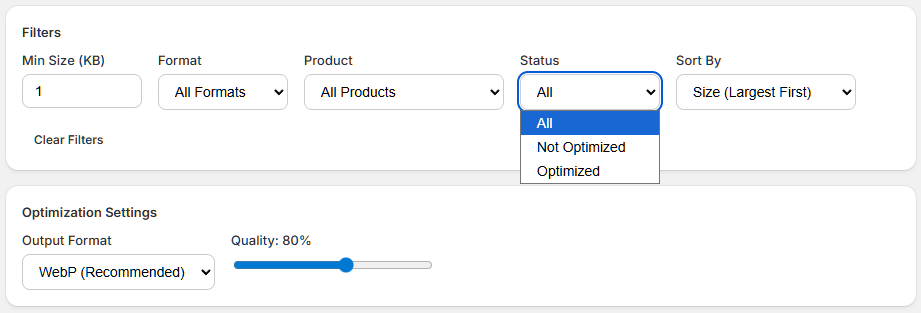
Status Filter: View optimized, not optimized, or all images
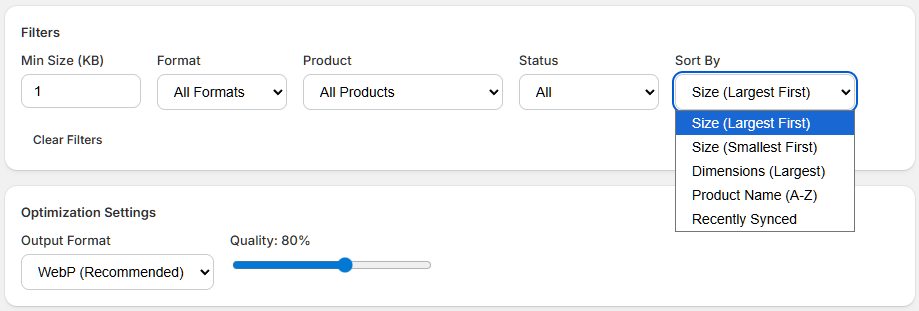
Sort Options: Sort by size, dimensions, product name, or sync date
Optimization Settings
Output Format: Choose WebP (recommended), JPEG, or keep original format
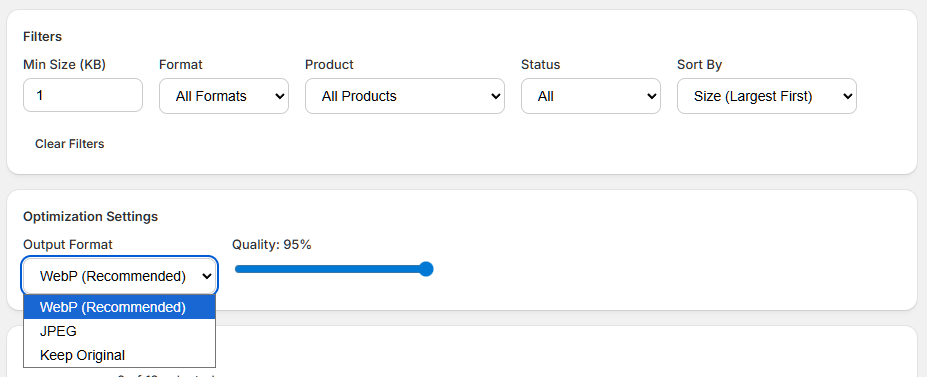
Quality Slider: Adjust compression quality from 60% to 95%
Target Size: Set a maximum file size target in KB

Summary & Sync
The summary section shows total images, size, credits, and last sync time. Click "Sync Images" to fetch the latest images from your Shopify store.

Job Queue
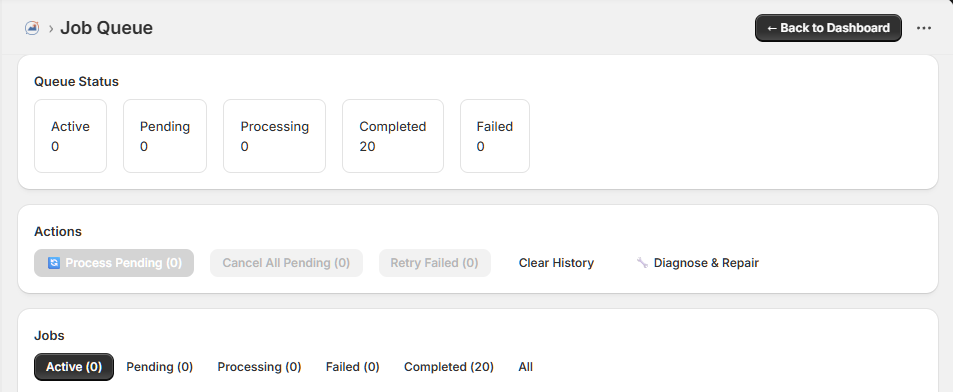
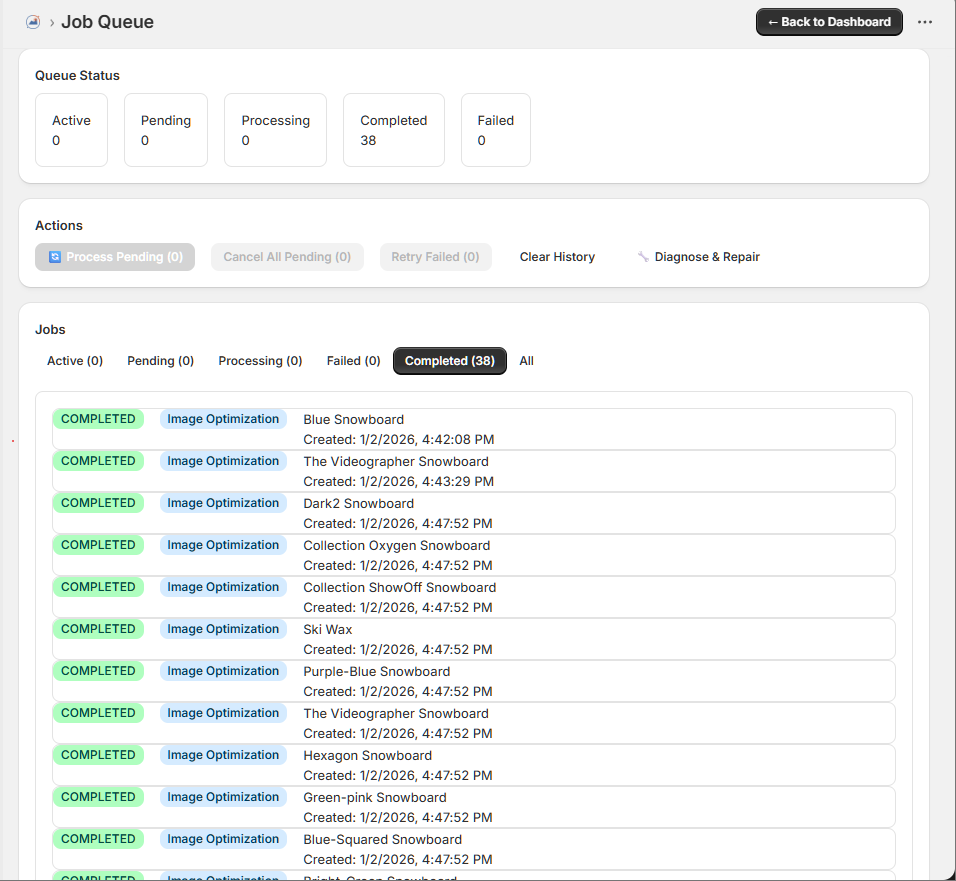
The Job Queue shows all optimization jobs - active, pending, processing, completed, and failed.
Queue Status
The status bar shows counts for each job state: Active, Pending, Processing, Completed, and Failed.
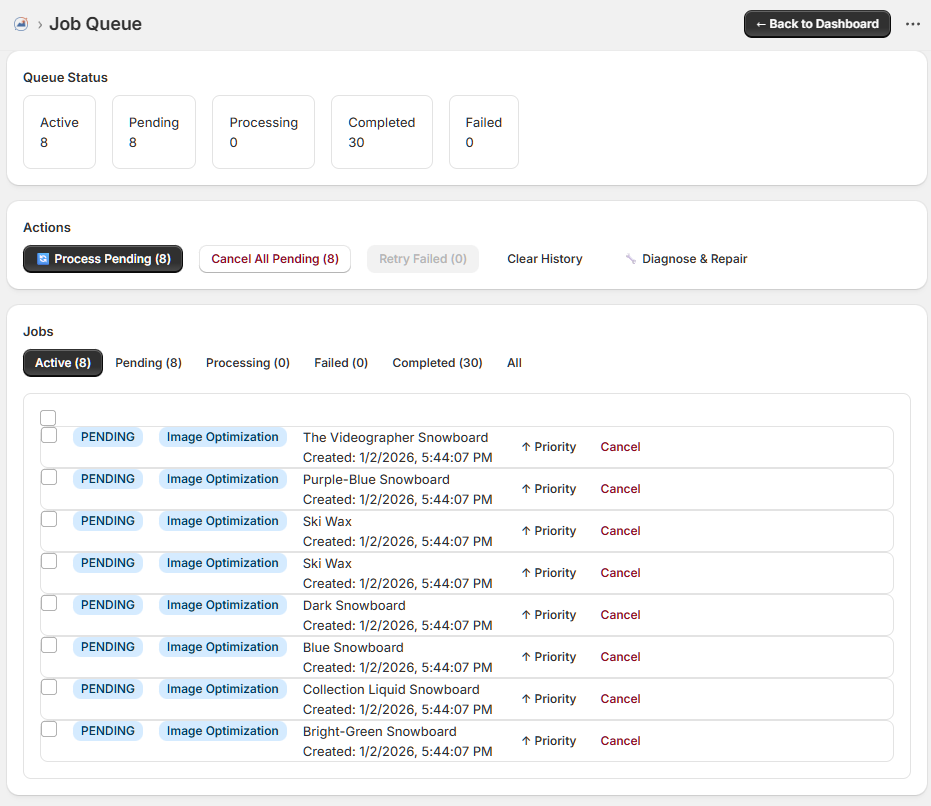
Pending Jobs
Jobs waiting to be processed show as "PENDING". You can prioritize or cancel individual jobs.
Completed Jobs
View your optimization history in the Completed tab. Each entry shows the product name, operation type, and completion time.
Actions
- Process Pending: Start processing all pending jobs
- Cancel All Pending: Cancel all jobs in the queue
- Retry Failed: Retry any failed jobs
- Clear History: Remove completed jobs from history
- Diagnose & Repair: Troubleshoot any issues
Settings
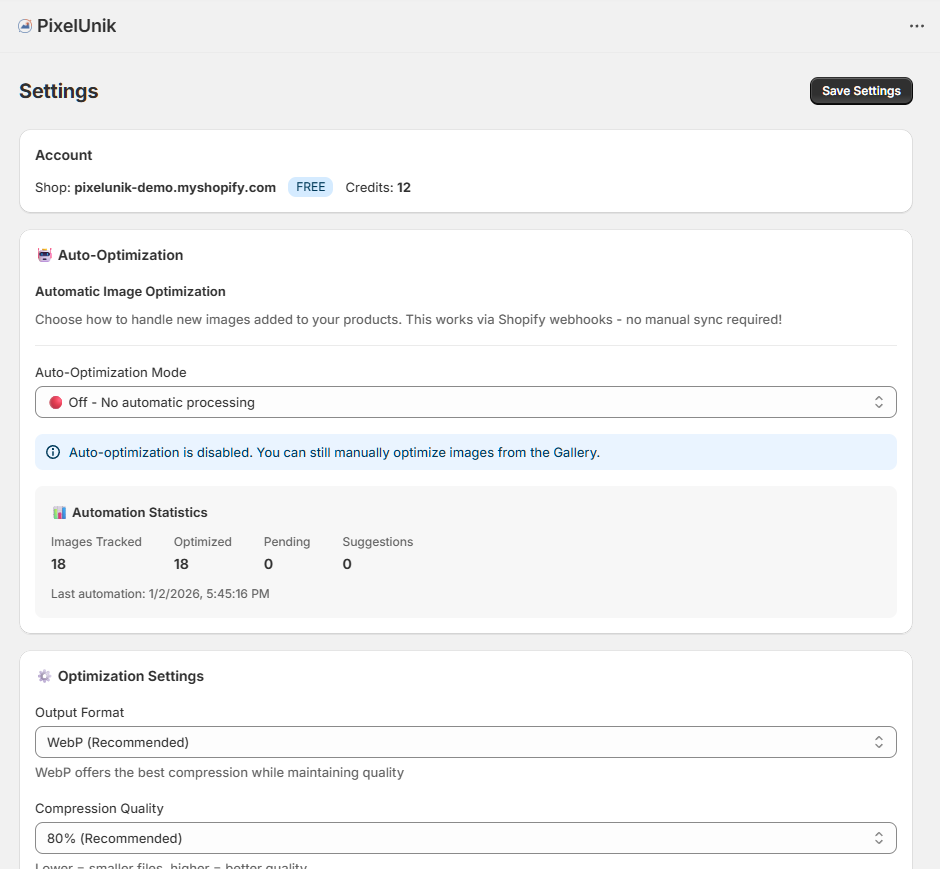
Configure your PixelUnik preferences including account info, optimization settings, and automation options.
Account Information
View your connected shop, subscription plan, and available credits.
Optimization Settings
Configure default settings for all optimizations:
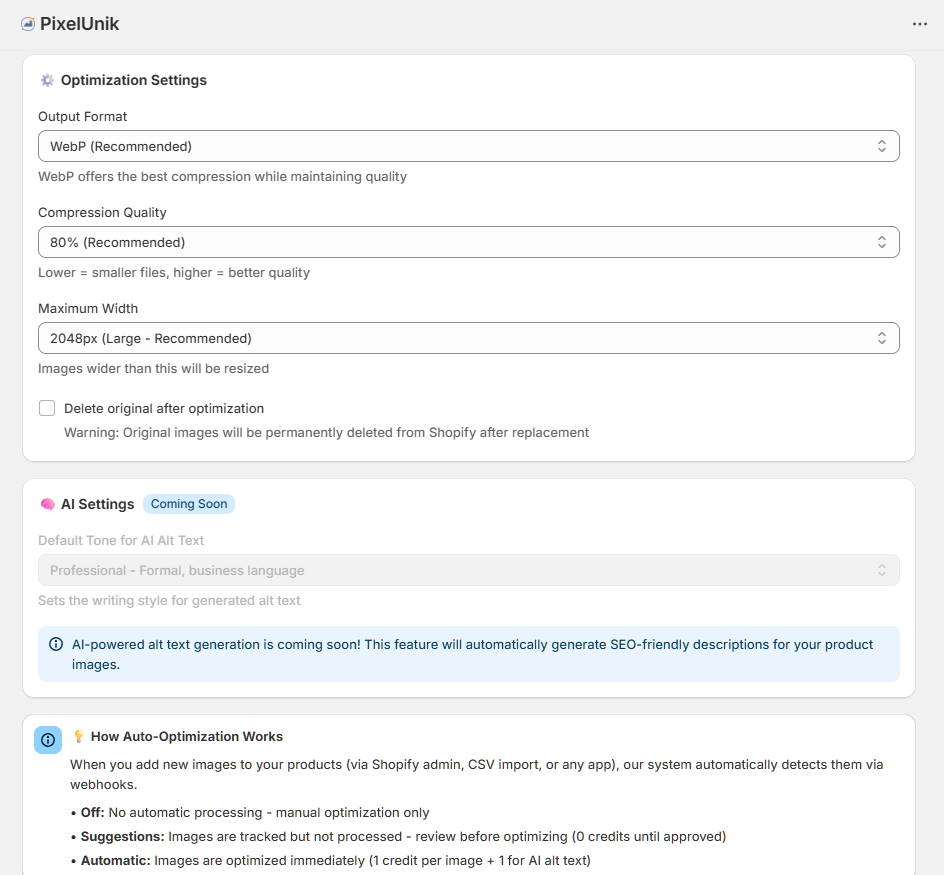
- Output Format: Default format for optimized images
- Compression Quality: Default quality level (80% recommended)
- Maximum Width: Resize images larger than this width
- Your originals: a copy of the source file is kept before any change, and stays recoverable while your subscription is active.
AI settings decide what the app writes for you.
- Generated text language: the language of descriptions and metadata. Left empty, it follows your storefront, not your admin dashboard.
- Tone: professional, friendly, luxury or technical. The chosen tone is passed to the model on every generation, one image at a time or in bulk.
- Custom requirements: your own writing rules, appended to the app's. Useful to enforce brand vocabulary or ban a word.
Auto-Optimization
Set up automatic optimization to process new images as soon as they're added to your Shopify store.
Automation Modes
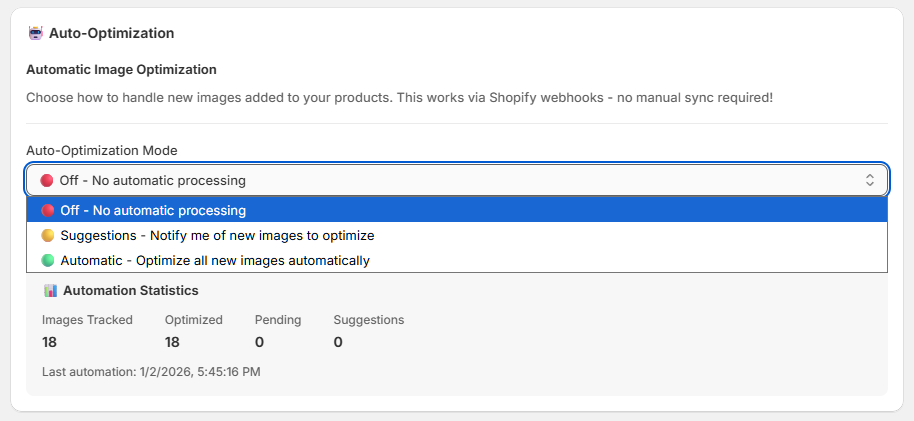
Choose how PixelUnik handles new images:
Off Mode
No automatic processing. You manually optimize images from the Image Library.
Suggestions Mode
New images are detected and added to a suggestions list. You review and approve them before optimization. No credits are used until you approve.
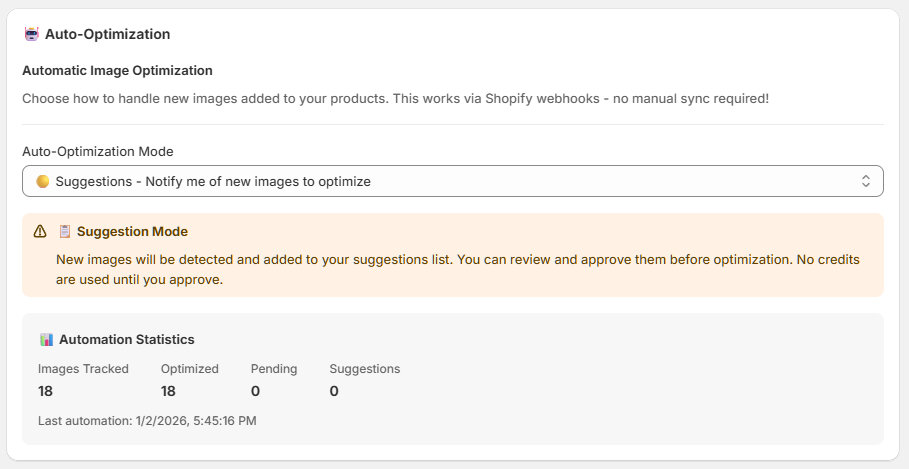
Automatic Mode
New images are automatically optimized when added to products. Credits are deducted automatically. AI alt text is also generated.
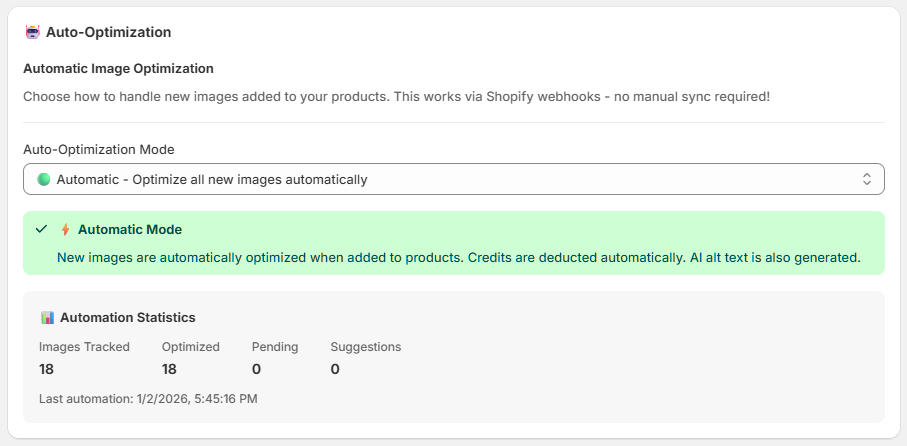
Start with Suggestions mode to review optimizations, then switch to Automatic once you're comfortable with the results.
Analytics Dashboard
Track your optimization performance, savings, and usage over time.
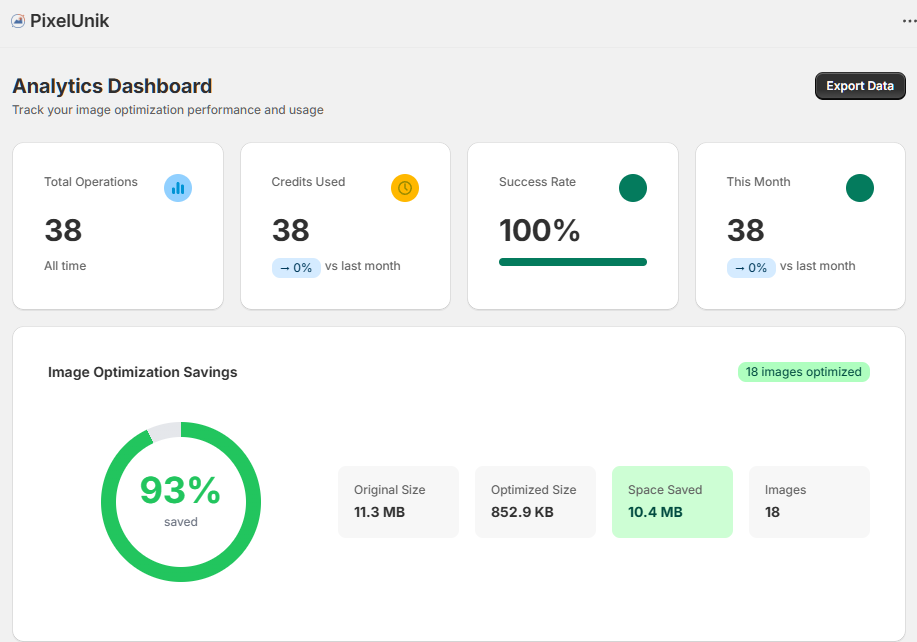
Key Metrics
- Total Operations: All-time optimization count
- Credits Used: Total credits consumed
- Success Rate: Percentage of successful optimizations
- This Month: Operations in the current billing period
Image Optimization Savings
See your total space savings with a visual breakdown of original vs. optimized sizes.
Usage Details
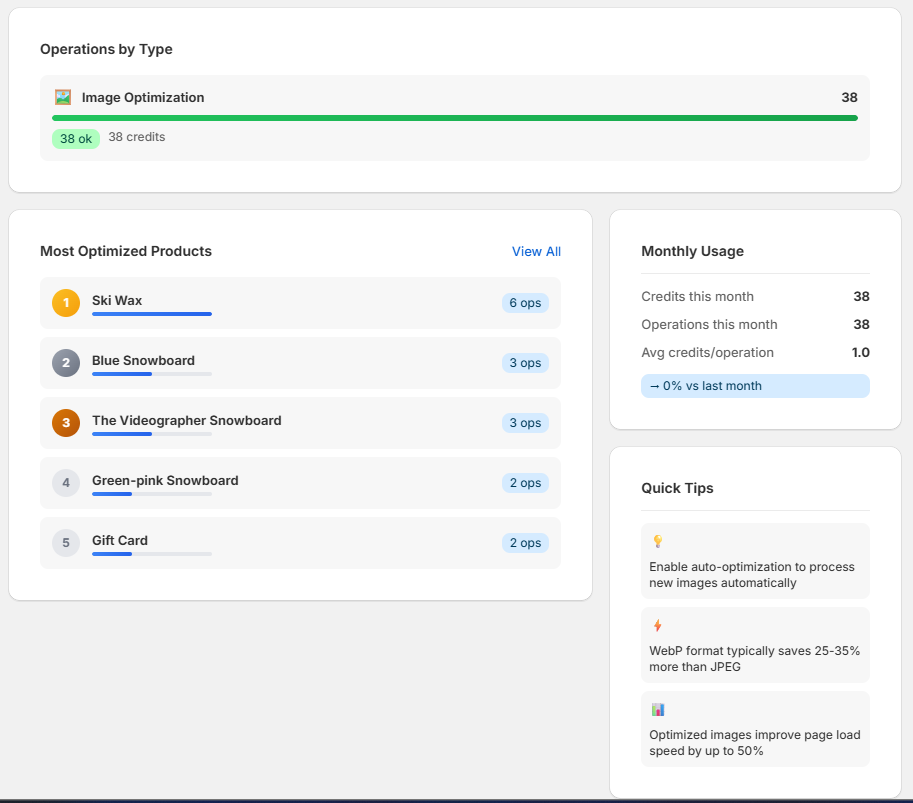
View operations by type, most optimized products, and monthly usage statistics.
Quick Tips
The dashboard includes helpful tips to maximize your optimization results:
- Enable auto-optimization to process new images automatically
- Shopify already serves WebP on delivery, so the saving lands on your source files. Our measured median across 1,415 stores is 15%.
- Compare the before and after weight in history. We measure bytes, never seconds.